How to Review a Reference List Before Submission
Updated
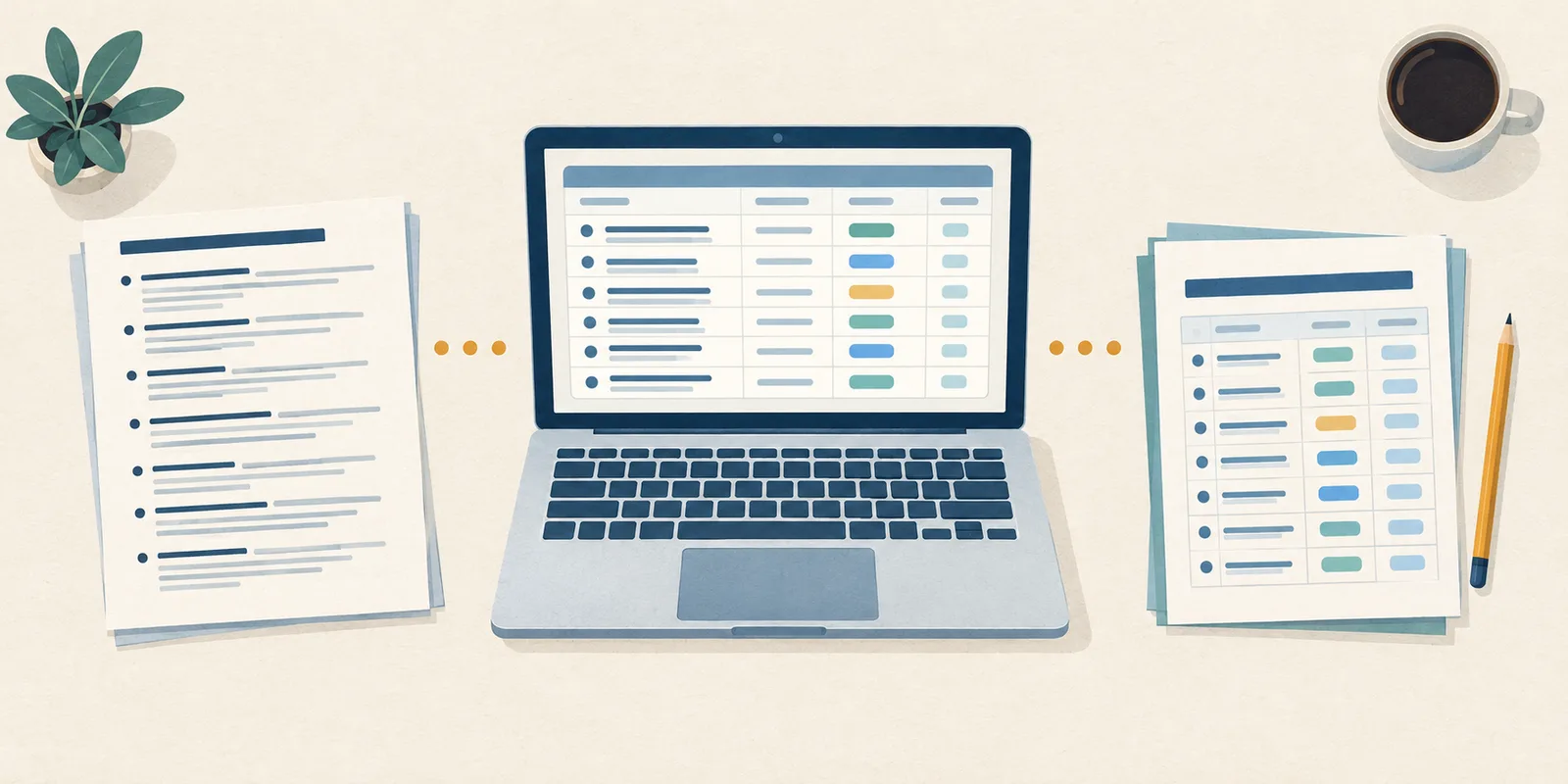
A reference list can look tidy while still containing a shortened journal name, a missing entry or a source you have barely used. Those problems are easier to catch when you review the list separately from the manuscript.
Reference Analyzer helps with one part of that review: identifying journals and comparing them across ranking databases. Here is a workable routine, from choosing an input mode to deciding what deserves another look.
Start with the version you will submit
Export or copy the bibliography from your current draft. If you use Zotero, EndNote or another reference manager, refresh the document's bibliography first. An older export may include sources you have since removed.
Keep the original list beside your results. You will need it to check whether entries were missed or split during extraction. A ranking report cannot tell you whether every in-text citation appears in your bibliography.
For a clean list, put each reference in its own paragraph. Preserve the journal name, year, volume and page details. Removing that information to make the input shorter can make extraction harder.
Choose the input that fits your material
Open the analyzer on the homepage. You can change modes regardless of which one opens first.
Paste Reference List
Use this for references copied from a document or reference manager. Select Paste Reference List, paste the entries and click Analyze References.
The parser works best with consistent, APA-like formatting. Journal matching runs in your browser. Start here when you already have a readable bibliography.
DOI Lookup
Use DOI Lookup when you have a published paper's DOI and want to examine its bibliography. This mode asks Crossref for the references deposited by the publisher.
The DOI belongs to the paper whose reference list you want to retrieve. You do not need to enter each cited article's DOI separately. Availability depends on the publisher's deposit, so a paper can return few references or none.
If that happens, copy the bibliography from the paper and use one of the other modes.
AI Mode
Use AI Mode for irregular text or a text-based PDF. You can paste text or upload a PDF up to 10 MB. The browser reads the PDF text, then the application sends the text for AI extraction through its Microsoft Azure service.
Try selecting a sentence in the PDF before uploading it. If the pages are images and no text can be selected, the tool cannot read them. It has no OCR step.
AI extraction can also miss or misread entries. Compare its output with the original bibliography, particularly when the PDF has columns, footnotes or awkward line breaks.
Check completeness before reading the rankings
Suppose your bibliography contains 42 entries and the analysis produces 35. That difference needs attention before you interpret a chart.
Compare the extracted authors and years with the source list. Look for:
- A reference split into two records.
- Two adjacent references read as one.
- A missing journal name.
- A book or report treated as a journal article.
- Entries near a page break that disappeared during PDF extraction.
The results group matched references by journal, so a group containing several records is expected when you cite that journal several times. Count the individual records when checking completeness.
If clean entries were missed, try AI Mode. If a long or messy input remains incomplete, analyze smaller sections and compare each section with its source.
Review the matches that could change your interpretation
The match percentage describes the similarity between an extracted journal name and an entry in the ranking lists. It does not measure an article's reliability or verify its bibliographic details.
Start with abbreviations, unfamiliar journal names and lower match percentages. Check the full title on the article's publisher page. Similar names can belong to different journals.
A blank ranking may reflect limited database coverage or an unsuccessful match. Books, working papers, websites and conference papers will often have no journal ranking at all.
For help with the individual columns, see how to check citations against journal rankings.
Turn the CSV into a review worksheet
Export the results to CSV and keep a copy of the bibliography you analyzed. In your spreadsheet, add a short review note beside anything that needs checking:
- "Confirm the full journal title."
- "Book chapter, no journal ranking expected."
- "Check the article's page range."
- "Read the methods section again before keeping this citation."
The CSV records the analysis. It does not update your manuscript or reference manager automatically. Make corrections in the source document, refresh the bibliography and rerun the relevant entries.
Finish with the manuscript
The last pass happens in the paper itself. Check that every citation supports the sentence beside it, that quoted passages have the required page details, and that the bibliography follows your submission guidelines.
If your next question is "Are my citations ready?", use the final citation-checking guide for that manual pass.
Review your reference list, then keep the results alongside the original sources while you make corrections.
Try Reference Analyzer Now
Review journal matches across seven ranking lists, then check uncertain results against your sources.
Analyze My Reference ListRelated Articles
Are My Citations Ready? A Practical Checking Guide
Wondering whether my citations are ready to submit? Check source details, claim support, duplicates and journal matches with this practical review routine.
Citation guidesHow to Check Citations Against Journal Rankings
Check citations across seven journal ranking lists. Learn what match percentages, blank results, SJR quartiles and FT50 or UTD24 membership tell you.